I’m a keyboard kinda guy, so [home] and [end] seem to work as expected for top/bottom of the page, respectively.
1 Thank
The right-arrow at the top right of a post pops out the original post that the current one is replying to. If you want to scroll back to the original post up higher in the thread, it takes one more click… click the up arrow in the top-right of that.
Here’s an example. Let’s say you see a post which is in the middle of a thread. By that, I mean it’s a reply to something, and there are also replies to it…
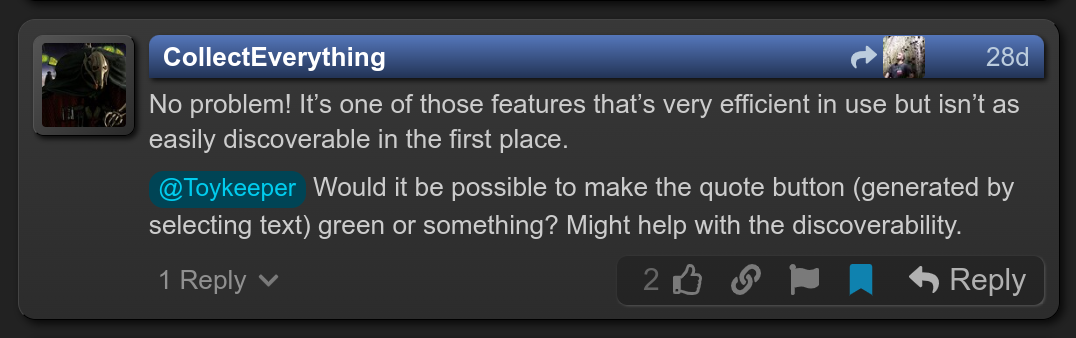
Perhaps you want to see the message this post is replying to. Or perhaps you want to scroll back up to the message it’s replying to. In either case, click the curved right arrow at the top right of the post. It should then look like this…
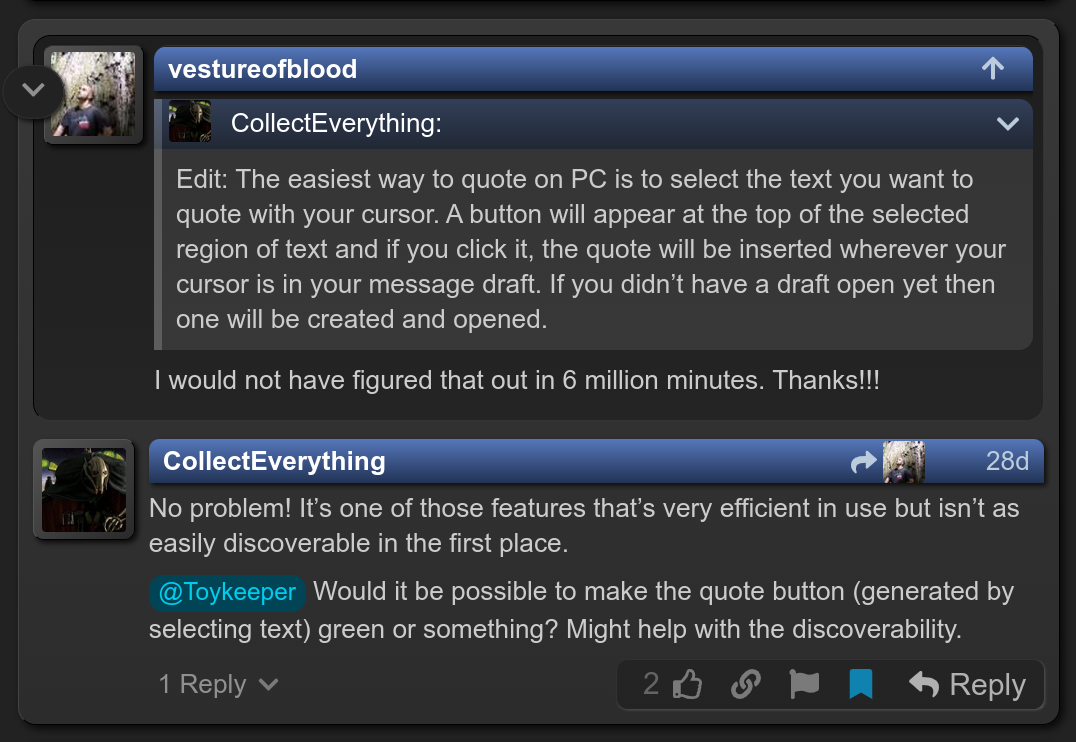
The related post has been expanded in place. I call this an embedded post, since it’s inside the original post’s widget onscreen. It could be 1 post before, it could be 10,000 posts before… but since they’re a direct reply, it shows them right next to each other.
If you want to scroll up to the original post, click the up arrow in the top right of the embedded post.
For now though, I’ll show what happens if you click the “1 Reply” thing at the bottom…
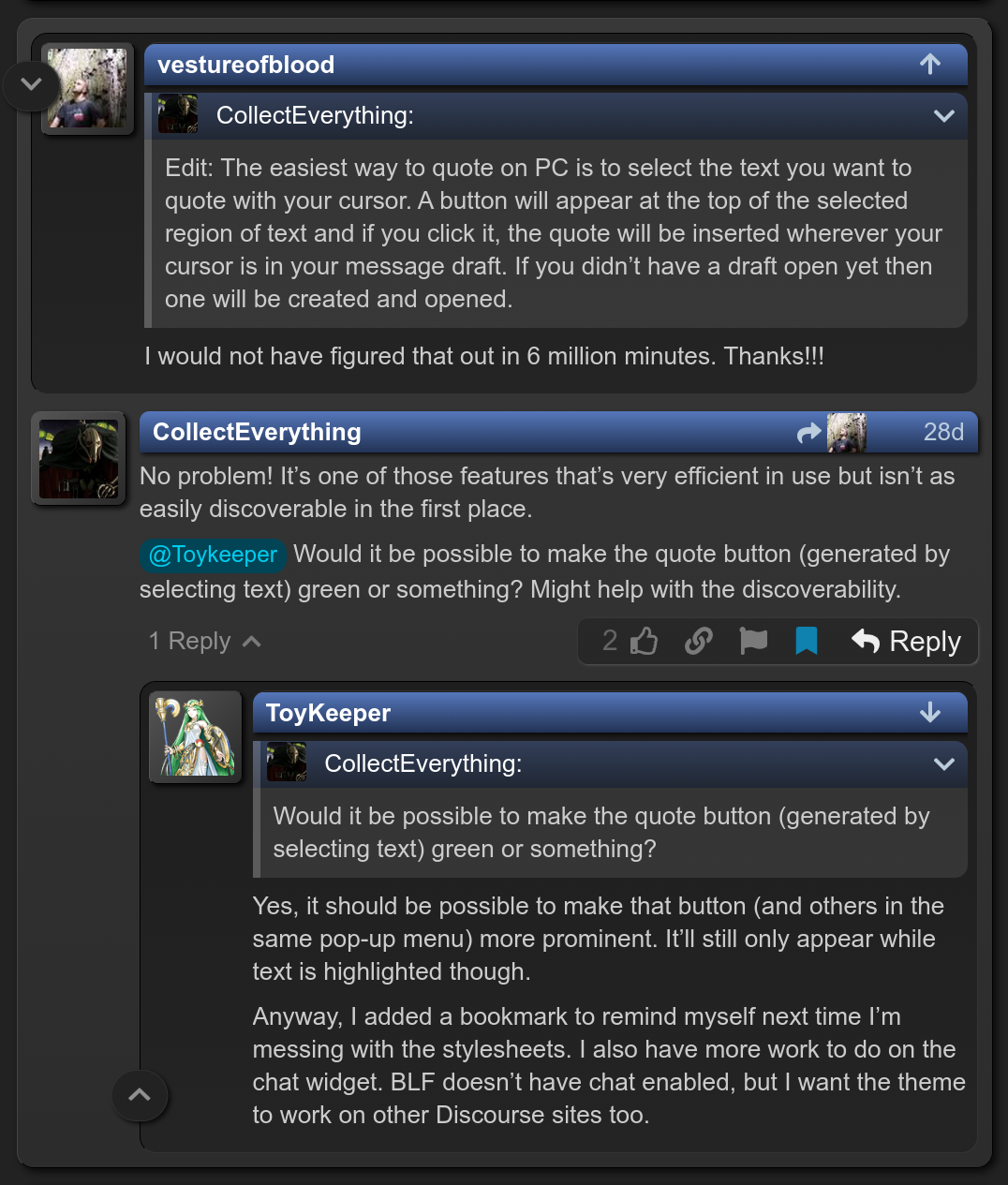
Now it has the previous post of the reply chain, the current post, and the next post next to each other… without any unrelated posts. This is to make it easier to follow the conversation.
To scroll down to the next post in the chain, click the down arrow at the top-right of the bottom embedded post.
To make it more clear what does what, I added labels:
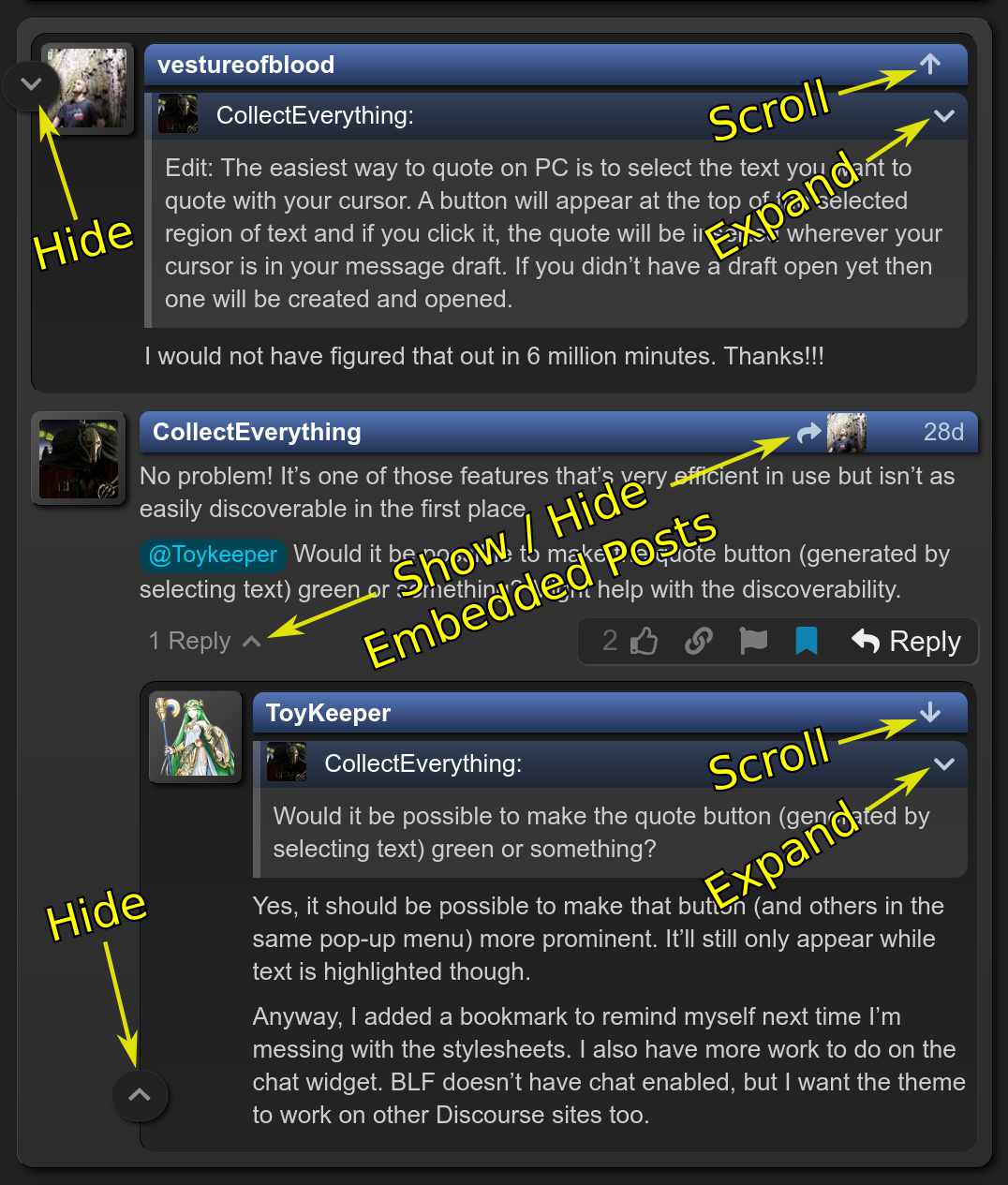
The “Show / Hide” widgets pop out the embedded posts before or after the current post in the reply chain. They can be dismissed afterward by clicking again or hitting the “Hide” button.
The “Scroll” buttons scroll the page to the related post in its original place, not embedded. This can be handy for reading a longer reply chain, or for simply scrolling back up to where you were after you post a reply.
The “Expand” buttons simply expand or collapse the quoted text within a post. It effectively toggles between the full post and the edited-down portion the person chose to show when replying.
Things may look different depending on which theme you’re using.
Anyway, I hope this helps.
3 Thanks
Excellent explanation, thanks!
Lots to digest, but useful, tnx!
I like the dark theme. Nowhere near as retina-searing as a white background.
Wow
Words are hard. Especially for non-wordy things.
1 Thank
Just to be clear, you have to click the arrow that is pointing down towards the top right of the post that is embedded at the bottom, and that will take you back up top to the previous post that was quoted at the bottom.
This is part of why I prefer command lines for many tasks instead of GUIs, especially when communicating about how to do stuff. It’s easy to say
run
grep PIZZA *.hto find the definition of pizza
… but not so easy to say
open the project menu, if you’re in version 7.0 or later, or the edit menu, in earlier versions, then choose the ‘find’ or ‘search/replace’ option, then click the search field and enter ‘PIZZA’, and click the scope widget (hidden in a pop-out in v7 or later), then check the ‘header files’ checkbox or enter a regex pattern of ‘.h$’, then click the big ‘search’ or ‘find’ button (not the ‘search’ entry box), and then click the ‘next’ and ‘previous’ buttons until you find the definition of pizza
For explaining a GUI, it kind of needs an annotated screenshot or video. But for a command line, just copy/paste a short bit of text.
Bingo. I also give a lot of support on Linux related stuff. I’m pretty sure that the prevailing notion that “Linux is hard and requires the terminal for everything” is because that’s how more experienced users offer to help, not because it’s not possible via a GUI but rather because it’s so much more unambiguous and succinct to just give a terse terminal command.
1 Thank