Anduril 2 UI diagrams (generic, Lumintop, Sofirn)

While there is indeed no entirely separate representation of Simple UI, Simple UI is integrated right into this chart. Functions that are also Simple UI functions are represented with a border around the button mapping:
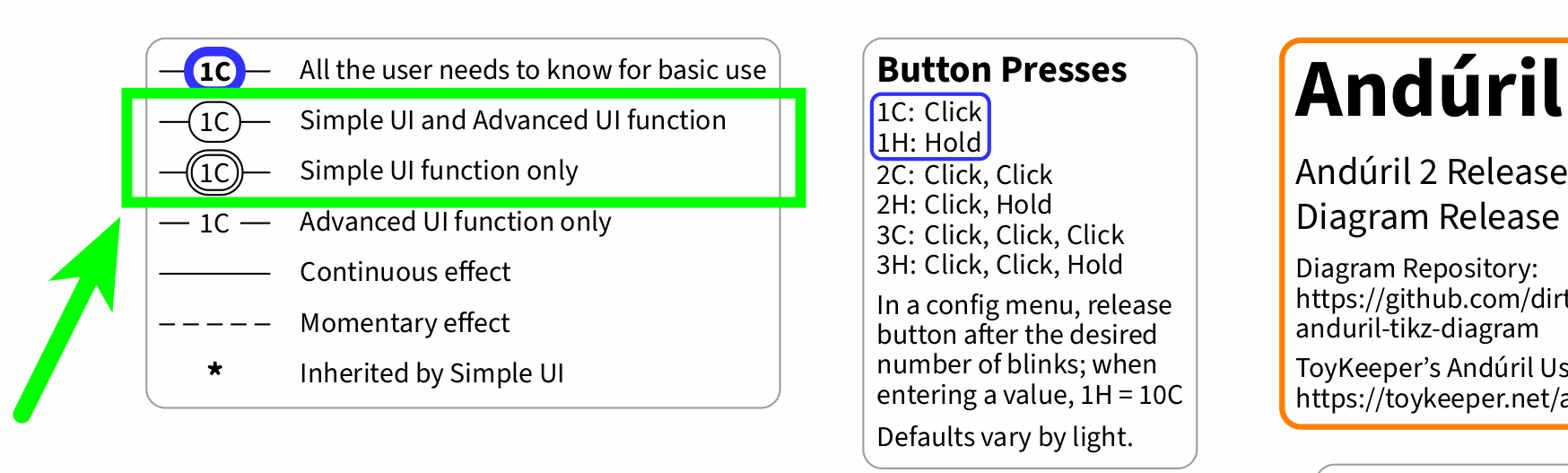
In addition to this border distinction, which is easily printable also with a basic black and white printer and thus ensures printability, Simple UI and correspondingly the Simple UI functions feature a light yellow background color, as a further visual emphasis:
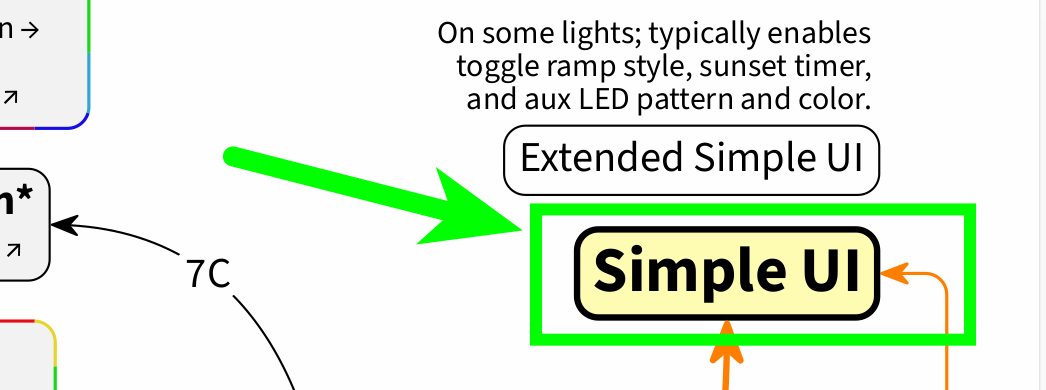
For example, as Batt Check is a Simple UI function (as well as an Advanced UI function), the 3C from Off has a border around it, and Batt Check itself sports a light yellow background color:

And yes, if need be, the chart’s layout can readily be modified with any text editor via the TEX source file, and for example the Advanced UI functions can further be “dimmed”, as demonstrated earlier in this thread:

For a visual distinction between (also) Simple UI functions and (only) Advanced UI functions, you may also check out an exemplary dark mode edition (source) of this chart, on which the Advanced UI functions are blue, whereas the Simple UI functions are green, see also earlier in this thread:

I hope that this clears things up a bit. If you have any further questions or suggestions, just let me know.

Yeah, this is one issue that the chart aims to address: The brightness ramp image is placed in the very center of the page as a landmark, and basic use (1C and 1H, click and hold) is emphasized and singled out. And also the way back from the outskirts to the very center, in Simple UI, is illustrated with the connection from factory reset to Simple UI. So even if a user gets lost (hard to imagine at least in Simple UI, but I am probably completely biased here), a fresh start is just 13H from Off away.
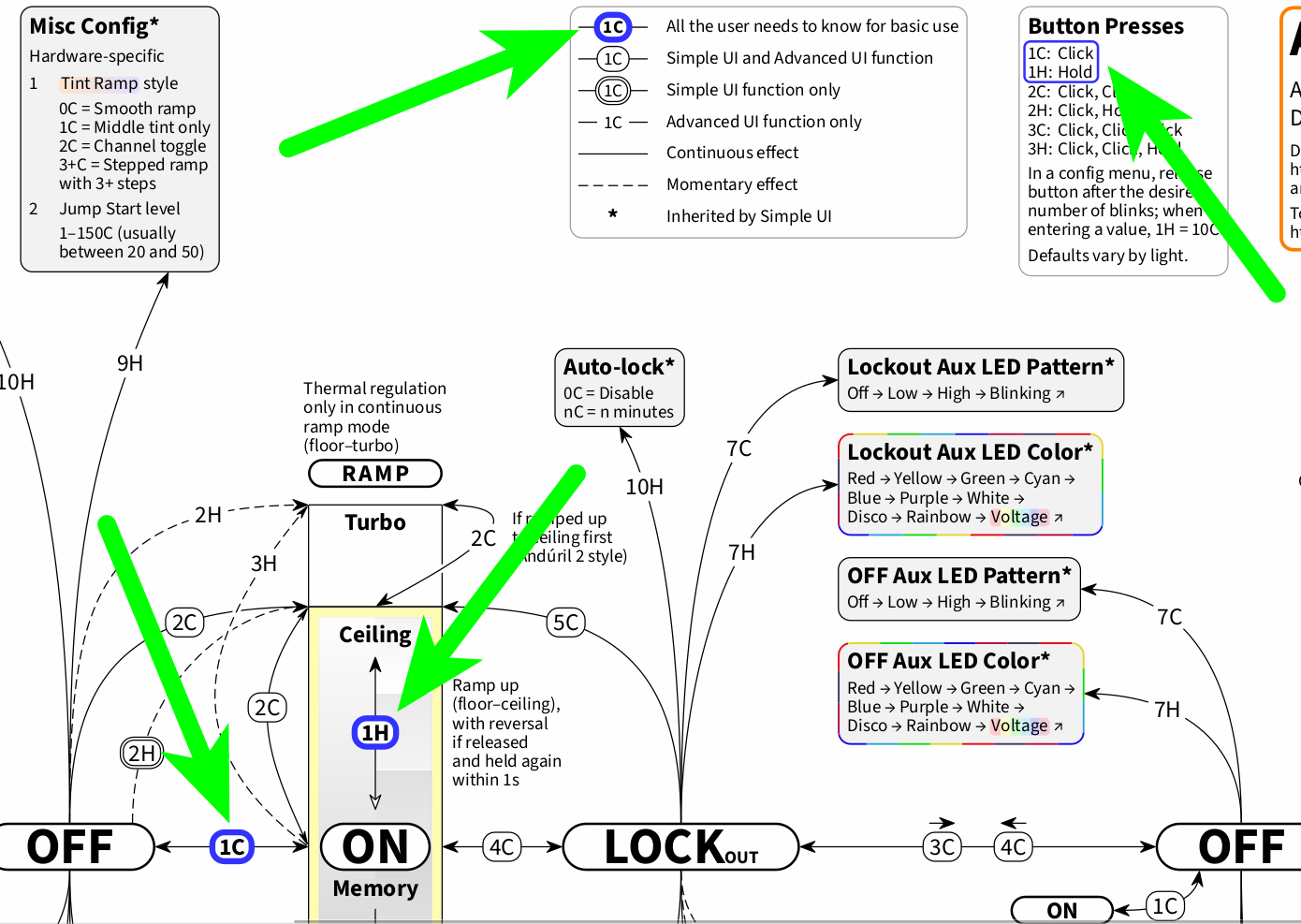
A myth, a legend, I agree. I mean, come on, for example I find it very “complicated” in an allegedly “simple” UI to have to click up through several levels of brightness to arrive at a simple lower brightness; with Anduril 2, I have 2H from On in any situation right away. We are not talking about some obscure configuration detail here, but about very basic brightness ramp functionality.

I can only speculate that maybe some folks fantasize that they need to memorize the entire chart (or text manual) before they can click once, 1C, to turn on the light. But there is absolutely no need to know it all before getting started, and quite possibly no need ever to know it all. Also to address that, I have included All the user needs to know for basic use right from the Quick Start section at the very top of ToyKeeper’s manual in this chart as well:

1 Thank

Hi dirtydancing, I very much appreciate your skills, dedication and the time you spent on the answer to me. And the visual solutions you made here really make a lot of sense.
I’m a (retired) engineer, I love to learn and I learnt every bit of Anduril back then before I even had an Anduril light. So when I got it, the UI just worked under my fingers. I also love the structured approach you represent here.
Last year I had a personal project: how to give a Li-ion flashlight to complete noobs. I mean good people but no technical skills. I wanted to give them a really safe solution so even when they are careless it won’t burn down their house. I strongly believe that our beloved sophisticated flashlights can only survive on the market if they can address way bigger population than just the flashlight enthusiasts and tech people. This is why I came back here to see what Anduril 2 can offer to that wider range of people. Certainly not this complex diagram should be the first thing they see. Some earlier flashlights had hidden “engineering” mode. The manual only covered the basic operation.
May be it is a wise idea to give “outsiders” the first part of Toykeeper’s Anduril 2 text manual. No idea, just thinking, how could the public and makers be convinced to make and buy more Anduril 2 (Anduril n) lights.

Well, you are right. The documentations, reviews should first communicate how easy and how intuitive it is to use. And the advanced functions should be advertised to wider public like options you may forget about or use to personalize your light and access more features.

Anduril 2 is the best thing that could happen to flashlights and I truly appreciate every members of the community who took part in the definition and making of it even if just with clarifying a requirement and standing by it. And those who make it appear on brilliant diagrams.

Thank you very much for your thoughts. And yes, indeed, how to best approach new users who have never heard of Anduril?

Some manufacturers are already sort of doing what you are suggesting here:

Sofirn/Wurkkos for their Anduril flashlights recently have moved to only documenting Simple UI in their manuals, and offering to provide more detailed advanced documentation at request (for example for Sofirn SC13 Copper or for Wurkkos TS26).

Unfortunately, the design/layout of their new manuals has not met much love so far, see over at Reddit. But this is not about the design/layout details, but about the approach to new users.

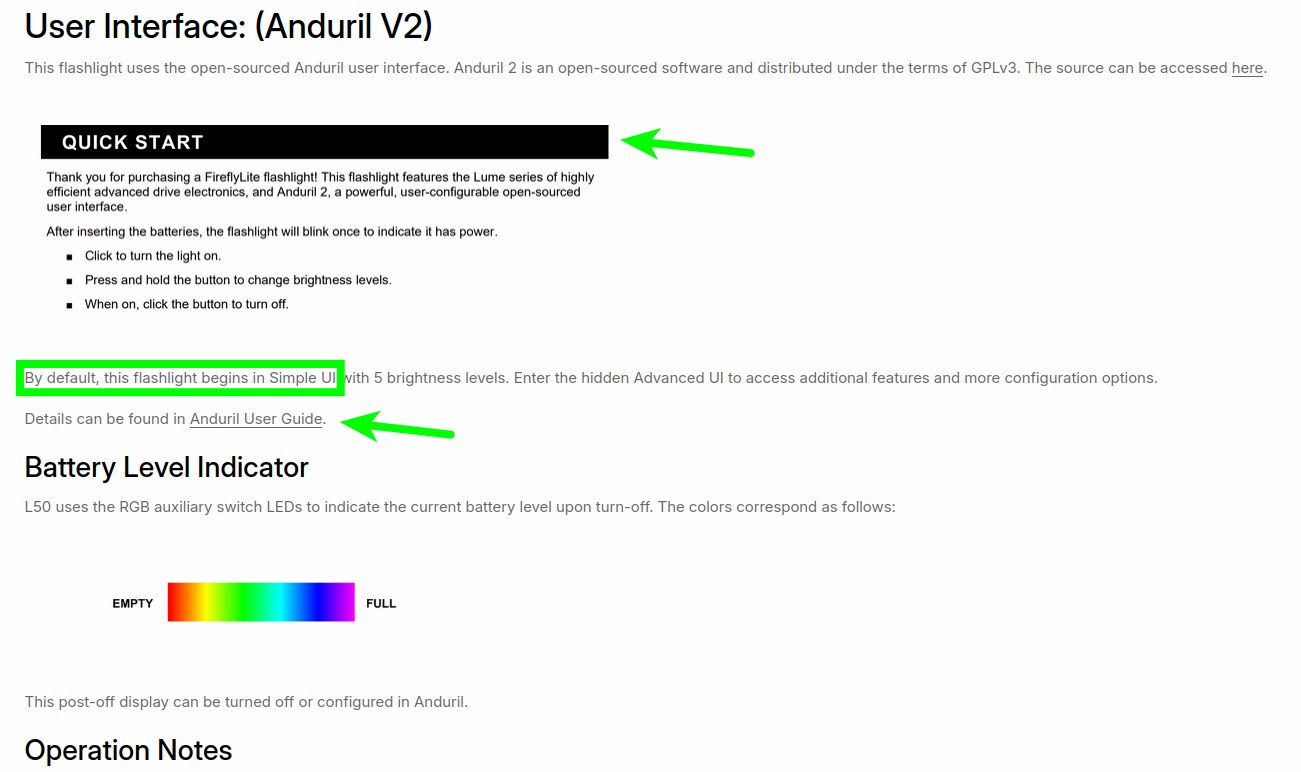
Fireflies (iirc that is what they are officially named once again) on their website include “Quick Start” Anduril information as well as a special Post-Off Voltage Display information, and provide a link to ToyKeeper’s text manual. To me, this looks like an elegant approach.

Coming back from the manufacturers to the community: When @ToyKeeper suggested to use something like TikZ for LaTeX to rebuild the Anduril diagram in order to cope with Anduril’s increasing complexity, see earlier in this thread (back in 2021):

ToyKeeper also mentioned that the diagram could be split up into a series of diagrams for tutorial purposes. And indeed, LaTeX would be a very powerful open-source tool to create an awesome open-source Anduril manual in PDF format that contains various images of diagram parts corresponding to the manual text. But that would arguably amount to a documentation project of its own, and at present I do not have the bandwidth for this kind of project. Of course, as all of this is plain text and open source, someone with the necessary skills could readily take this on. TikZ for creating graphics is arguably one of the most complex packages for LaTeX, so with the TikZ diagram available, a foundation for such a LaTeX documentation project would already exist.

Regarding the diagram itself, initially getting exposed to only a Simple UI diagram might be a less intimidating experience for new users. However, it is kind of tricky to single out a Simple UI diagram. For example, there is Extended Simple UI (on some, or recently rather on many lights), for which you would basically need an Advanced UI diagram to know what exactly these extended functions are. Furthermore, for configuring Simple UI, you need to access Advanced UI, so arguably it is useful to combine all the features in one diagram, for example to be able to see which settings are inherited by Simple UI from Advanced UI. Still, there are the great diagrams by @containerfan (source) that consist of a Simple UI diagram and an Advanced UI diagram, so a separate diagram for Simple UI is already available (currently up to Anduril 2 release 2024-04-20).

I am glad you brought up some suggestions, and these are just a couple of thoughts from my end.

3 Thanks

Anduril is intimidating because of the OPTIONS Flow Chart.

But that is NOT what a new user needs. They just need Operating Instructions.

the Online Manual has a very concise Quick Start with Operating Instructions for a new user:

——

Quick Start

After putting a battery in the light and tightening the parts together, the light should quickly blink once to confirm it has power and is now operational. After that, basic usage is simple:

  • Click to turn the light on or off.
  • Hold the button to change brightness.
  • Release and hold again quickly to change brightness the other way.

That is all the user needs to know for basic use

——

imo the Operating Instructions are Not intimidating to a new user..

otoh Options Flow Charts will make their eyes glaze over
and that is the most common excuse new users give for not wanting to use Anduril.. they saw the Options Flow Chart and confuse that for the Operating Instructions

1 Thank

Completely agree about the flow chart being a poor instrument for learning Anduril. I don’t know why most people (at least on Reddit) keep recommending it for first timers. The written manual is the way to go.

3 Thanks

It helps if the user is technically minded or a problem solver. For others, the spreadsheet with text works better.

1 Thank

I’d say RTFM once and after that the flow chart will become a really good reference.

5 Thanks

Thank you for reading my comments and giving comprehensive responses. I think there are many flashlights out there (and will be more) that we, enthusiasts would gladly own and use if only it had Anduril 2. I am just seeking the way of making enthusiast grade lights acceptable to both the makers and wider public. One comment below jon_slider correctly quotes Toykeeper’s manual for the basics: it is so simple, and this should be known to the wide public.
It is very interesting what you wrote about making the charts. I’m not familiar (yet) with the mentioned tools but I would gladly learn them. Last year I retired from my busy project-driven life, may be I can afford this effort. What tool did you use to create your chart please?

Hi, you are absolutely right about the ease of basic use of Anduril 2 and that it is very clearly stated in Toykeeper’s manual starting from the early times of Anduril 2. I would love to understand why Lumintop, Sofirn and Wurkkos start abandoning Anduril 2 in their lights. I think it is really important to address this matter if we would like to see more Anduril 2 lights out there.

One more aspect I forgot to react: the different versions of Simple mode. I think that is really the task of the maker to provide a clear definition of the way their product works in Simple mode.

The benefit of the diagram is that it is language-indifferent as long as the user learns the very basic acronyms. But you are right, Anduril 2 manual is written very well and it was a joy to me to learn it back then and is easy find and learn new features created lately. What I’m really curious about is how could we achieve more acceptance of Anduril 2 in broader (non-enthusiast, non-tech) public so makers would release more of them. Both the whole chart and the whole manual may be intimidating.

Anduril does not Interest the manufacturers. Because their Customers don’t require the complexity.

I think Manufacturers stopped offering Anduril because it was only a very small portion of their sales.

Unpopular opinion…Anduril lights should have shipped in simple mode, set to and advertised at whatever brightness the manufacturers market researched to be the most used modes. I.e., 3lumen 1h, 70lumen 1c, 500lumen 2c, NO turbo. Then, those of us who want the programmability would have simply 10h to swap back to advanced UI. If a layman tried and messed up, a factory reset could be programmed to go back into the simple mode presets.

agree.. Simple UI and in Stepped ramping would make sense…

but Anduril went through a lot of version changes

Sofirn would build a batch of lights with certain firmware available at the time, and when a new Anduril version came out, they were not set up to reflash the inventory…

Emisar is the only business model that can keep up with flashing the latest firmware version before shipping individual lights.. They dont have a warehouse full of boxed inventory.

1 Thank

So Fireflies are getting another thing right, as their flashlights apparently do ship in Simple UI, see for example their web page for the new L50 Sol:

As I already noted earlier, the approach they are taking looks elegant to me:

In contrast, Hank usually ships in Advanced UI, and for Sofirn/Wurkkos I am not sure, it seems like either one is possible. At least that is what I gathered from the recent shipping of the Sofirn SC13 Copper, iirc the one I received shipped in Advanced UI.

Related, I have also been wondering why Hank is using Extended Simple UI, given that he ships in Advanced UI anyway.

And I still do not think it is a good idea to set Simple UI ceiling to 150 (that is, to turbo), as Sofirn have done for example recently with their SC13 Copper, see this feedback of mine in another BLF thread:

However this may be, I agree that it would be helpful to have some consistency here, but that is the current situation.

Yes, that is the vanilla default 2C turbo style for Simple UI (NO turbo), so this would check out. But for example, per gchart’s answer to my feedback from above:

I am sure there are more details to be aware of about all of this. This topic probably has already come up before, but still, the users were complaining: LIGHT NOT BRIGHT! (Which by the way seems to be a different topic than documentation complexity.) So who is to blame here, or rather to address and to enlighten: the manufacturers or the users?

1 Thank

Sure, thanks for asking. Let me start with a little humor:

RTFM - Read the fine manual, in two ways here:

First, did you read the Readme of the TikZ diagram’s GitHub (source)? :grin: At Description it states about the diagram: “It is created with TikZ for LaTeX.” So the tool is called TikZ (itself a syntax layer for PGF), which is a German recursive acronym for “TikZ ist kein Zeichenprogramm”, meaning “TikZ is not a drawing program”. Meaning that with TikZ you create graphics, but not by drawing them on screen, but rather by coding them in plain text (and then compiling them).

Second RTFM: There is indeed a manual for TikZ: PDF here (there is a link provided on PGF’s GitHub). And this manual is some 1300 pages long; long manuals anyone? :grin: OK, in this case RTFM may not be the initial way to go, but this is a great manual, and if you get into TikZ, you will no doubt come across it and back to it.

OK, enough RTFM for now. There are other ways to get an impression of what this tool is about. You will find plenty of information on it online, and for example there is a nice book called " LaTeX Graphics with TikZ", see https://tikz.org/. This may be useful for a structured approach, although what you are looking for may be directed more specifically at flow charts. Anyway, a big advantage of this text-based approach to graphics is that you can easily use version control, and thus keep track of your changes as well as collaborate.

The somewhat larger picture is that PGF/TikZ is a package for LaTeX. In the source code of the diagram, you will see that there are two tables of contents: one for the Preamble, the style, and one for the Body, the content. A major part of the Preamble consists of tikz, and the entire Body consists of a tikzpicture.

So, hopefully this will give you a first impression of what this is about. All of these tools are very powerful, yet complex (there we go again, complexity all over the place), so just have a dive into it and see if this works for you. I am happy to help if you have further questions.

2 Thanks

Anduril does not Interest the manufacturers. Because their Customers don’t require the complexity

Complexity is not the only benefit of Anduril 2. We should emphasize the wide variety of simplicities. Anduril 2 was born this way because even the enthusiasts wanted different behavior from the flashlight. With Anduril 2 one can have the exact version of simplicity they like. Want to start high all the time? You can. Want to start low? You can. Want memory or want not to have it? You can.

2 Thanks

Thank you for giving an introduction to these tools. Though these are all new to me, I’m not new to defining various kinds diagrams as structured text, I used UML for example. As of RTFM reciprocating the humor I’m not used to read manuals, I’m used to write them, thousands of pages :slightly_smiling_face: . After some body and mind wrecking health experiences I’m still searching my new self. No idea if I can ever return to my former effective self and create things again. One thing is sure: the evolution of flashlights is a cocktail cherry to me on the cake of systems evolutions I’ve experienced or took part in. And I would love to see the greatest community achievements at flashlight tech to survive.